How to Add a Vehicle to the Jeep App in 7 Easy Steps
Many Jeep owners want to get the most out of their vehicles by connecting them to the Jeep app, but the process can seem confusing or frustrating at first. You’re not alone—lots of people struggle with adding their vehicle smoothly.
Luckily, it’s easier than you might think.
To add a vehicle to the Jeep app, first create or log into your account. Then, verify your vehicle’s compatibility and locate its VIN. Connect your phone via Bluetooth, then open the app and select “Add Vehicle” to input the VIN carefully.
If you encounter issues, troubleshoot and confirm vehicle details. Once everything matches, you’ll be able to discover your vehicle’s features—keep going to get all the tips you need.
Key Takeaways
- Create or log into your Jeep app account. Make sure your email is linked to your Jeep ownership.
- Check if your vehicle is compatible. Find the VIN on the dashboard or door frame.
- Connect your phone to the vehicle via Bluetooth. Follow the pairing instructions to complete the process.
- Open the Jeep app and select “Add Vehicle.” Carefully enter the 17-character VIN.
- Confirm the vehicle details. Wait for the app to process the information.
- Once everything is verified, your vehicle should be successfully added to the app.
Create or Log Into Your Jeep App Account
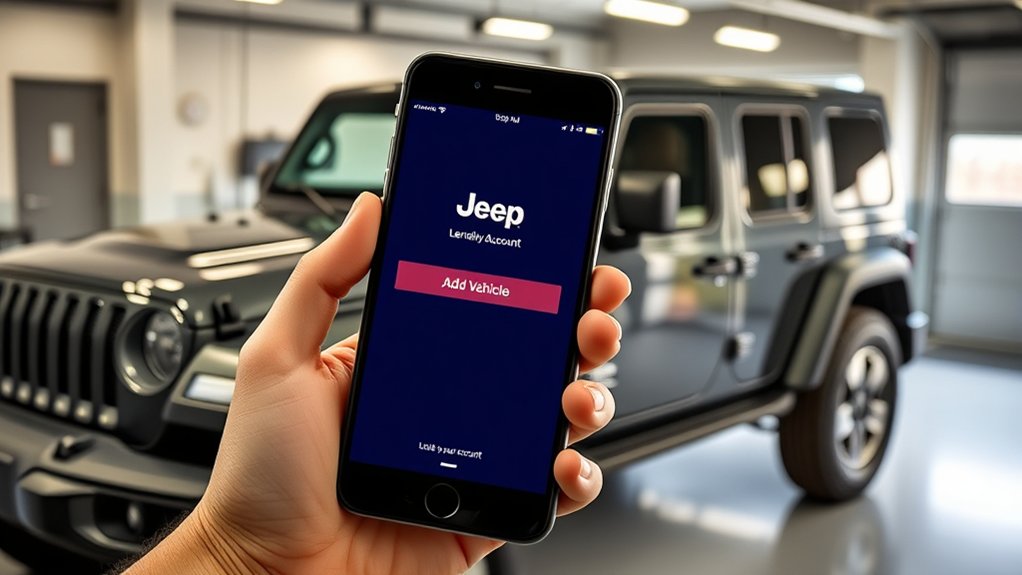
To get started with adding your vehicle, you first need to create or log into your Jeep App account.
If you don’t already have an account, open the app on your smartphone and tap “Sign Up.” You’ll be prompted to enter your email address, create a secure password, and provide some personal details.
Using your email associated with your Jeep ownership helps ensure smooth vehicle integration later.
If you already have an account, simply tap “Log In” and enter your registered email and password.
Creating an account is quick and straightforward, allowing you to easily access all app features.
Once logged in, you’re ready to proceed with adding your vehicle and enjoying the app’s full capabilities.
Verify Your Jeep Compatibility and Locate Its VIN
Once you’re logged into your Jeep App account, the next step is to verify that your vehicle is compatible and to locate its VIN. Make sure your Jeep is a supported model from 2017 or later with Uconnect 4 or newer. Examples include Wrangler (2018+), Cherokee, Grand Cherokee (2017+), or Renegade (2018+).
To find the VIN, check the driver’s side dashboard near the windshield or look at the driver’s side door frame label. The VIN is a 17-character code that uniquely identifies your vehicle.
Before entering the VIN into the app, confirm that your vehicle’s details match the supported models. You can also scan the QR code or refer to your registration or insurance card for the VIN.
Follow these simple steps to add your vehicle and ensure you receive accurate vehicle health updates.
Connect Your Smartphone to Your Jeep via Bluetooth
To connect your smartphone to your Jeep via Bluetooth, start by turning on Bluetooth in your phone’s settings.
Next, go to your vehicle’s Bluetooth menu to put it in pairing mode and search for your device.
Once you see your Jeep’s name, select it and confirm the codes match to finish pairing.
Enable Bluetooth on Smartphone
Have you enabled Bluetooth on your smartphone yet? To do this, go to your device’s settings menu and toggle the Bluetooth switch to “On.” Make sure your phone is discoverable or visible so your vehicle can detect it during pairing.
Next, access your Jeep’s Bluetooth settings through the Uconnect system or infotainment screen. Search for available devices on the vehicle’s Bluetooth menu, and select your smartphone from the list.
Confirm that the pairing code displayed on both your phone and the vehicle matches before completing the connection. Ensuring Bluetooth is enabled and visible on your smartphone is an essential step to successfully connect your device to your Jeep.
This straightforward process sets the foundation for seamless pairing and vehicle integration.
Pair Device With Vehicle
After enabling Bluetooth on your smartphone and making sure your vehicle is detectable, go to the Bluetooth settings on your Jeep’s Uconnect system or infotainment screen.
To pair your device, first ensure your vehicle is in pairing mode, which is usually indicated by a Bluetooth icon or a prompt on the screen.
Next, search for available devices on your smartphone.
Select your Jeep’s Bluetooth name from the list of available devices.
Make sure the pairing code matches on both your phone and the vehicle’s screen before you accept the connection.
Once paired, save the device to your vehicle’s Bluetooth system so it connects automatically in the future.
This way, you won’t have to repeat the process every time you want to connect your smartphone.
Following these easy steps will help you quickly connect your phone to your Jeep and enjoy hands-free convenience.
Add Your Jeep Using the VIN in the App
Adding your Jeep using the VIN in the app is pretty simple. First, open the Jeep app and tap the “Add Vehicle” option from the menu or dashboard.
Open the Jeep app and select “Add Vehicle” to easily register your Jeep using the VIN.
Carefully enter your vehicle’s 17-character VIN into the VIN entry screen, making sure every character is correct. Double-check that the VIN matches your Jeep’s details, including make, model, and year, before submitting.
If the VIN entry screen isn’t responsive or not accepting input, try reloading the app or use an alternative method like web addition.
Once you’ve entered the VIN, wait for the app to process the information. It will then confirm that your vehicle has been successfully added, finishing the process smoothly.
Troubleshoot Common Vehicle Addition Issues
When you encounter issues while adding your vehicle in the Jeep app, troubleshooting can often fix the problem quickly. First, if the VIN entry screen is unresponsive, try adding the vehicle through the Mopar website instead.
Second, make sure you’re not near multiple vehicles, as being close to others can interfere with VIN recognition. Third, keep in mind that syncing from the web to the app might take overnight, so a little patience is key after adding via the website.
Fourth, updating or reinstalling the app can help fix any software glitches causing addition errors. If you’re still having trouble, contact Jeep support, especially if you get messages telling you to call for help.
Following these steps should help you troubleshoot common vehicle addition issues efficiently.
Confirm Vehicle Details and Finish Linking
Once you’ve entered the VIN, take a moment to review the vehicle details carefully. Make sure they match your Jeep’s make, model, and year.
When you’re confident everything looks good, tap the confirmation button to finish linking your vehicle.
Double-check for any errors before you finalize to avoid issues with the app later on.
Verify Vehicle Information
Have you double-checked the vehicle details after entering the VIN? Carefully review the displayed information, including make, model, and year, to ensure it matches your Jeep. Confirm that all details are correct before proceeding.
To avoid issues later, follow these steps: Verify the make, model, and year match your Jeep precisely. Correct any discrepancies by updating the VIN or vehicle info. Double-check for typos or incorrect entries.
Tap the confirmation button once you’re confident the details are accurate. Properly confirming the vehicle information guarantees the app provides accurate remote controls, alerts, and data management.
Ensuring these details are correct is essential before finalizing the link to your Jeep app account.
Complete Linking Process
After verifying that all vehicle details are correct, tap the confirmation button to complete the linking process. Carefully review the displayed information, making sure the make, model, and year match your Jeep.
Double-check for any discrepancies or errors because accuracy is key to proper integration. Make sure your internet connection is stable before confirming to ensure smooth synchronization.
Once you tap the confirmation button, the app will finalize the linking process. Wait for a confirmation message or indicator that your vehicle has been successfully added.
Finally, check that your vehicle appears in your app’s garage or vehicle list. This confirms that the connection was successful. This step completes the setup and allows you to access all the app’s features for your Jeep.
Explore and Manage Your Vehicle’s Features in the App
Exploring and managing your vehicle’s features in the app puts control directly in your hands, allowing you to customize and monitor your Jeep with ease. Once your vehicle is added, you can:
Managing your Jeep through the app gives you seamless control and personalized insights at your fingertips.
- Monitor its health status and get maintenance alerts instantly.
- Use remote controls to start the engine, lock or unlock doors, and locate your Jeep.
- Access personalized management options like scheduling service appointments and adjusting vehicle settings.
- Manage multiple vehicles, switch between them effortlessly, and customize each one’s preferences individually.
The app keeps you updated with real-time notifications about your vehicle’s status. With these features, you have full control over your Jeep’s performance, security, and maintenance—all from your smartphone.
Frequently Asked Questions
How Do I Add a Car to My Jeep App?
To add a car to your Jeep app, open the app and go to “My Garage” or “Add Vehicle.”
Enter your vehicle’s 17-character VIN, which you can find on the dashboard or driver’s side door frame.
Make sure your vehicle is compatible, then double-check the details before submitting.
The app will sync, and once confirmed, your vehicle appears in your garage for remote management.
How Do You Register Your Car on the Jeep App?
Getting your car registered on the Jeep App is easy if you follow a few simple steps. Just open the app and go to “My Garage” or “Add Vehicle.”
Next, carefully enter your vehicle’s 17-character VIN. Make sure it’s correct and compatible with the app.
Then, follow the prompts to verify your details. Once everything’s confirmed, your vehicle will appear in the app.
Now you’re all set for remote features and vehicle info at your fingertips.
Where Is the Secret Compartment on the Jeep Wrangler?
You’ll find the secret compartment on your Jeep Wrangler behind a side panel in the dashboard area.
It’s often hidden within the glove box or behind a removable trim piece. Some models even have a concealed compartment under the center console or floor mat.
To access it, carefully remove the necessary panels or trim pieces. Make sure you don’t damage any clips or fittings so you can store your valuables discreetly.
How to Find Car on Jeep App?
To find your car on the Jeep app, open the app and go to the “My Garage” section. Your vehicle should appear there if it’s added and connected properly.
You can also use the “Locate Vehicle” feature to see its current location, as long as GPS sharing is enabled.
If your vehicle isn’t showing up, double-check that you’ve linked it correctly using your VIN and that the connection is active.
Conclusion
Adding your vehicle to the Jeep app is simple and helps you stay connected and in control. Did you know that over 70% of vehicle owners who use connected apps report feeling more satisfied with their cars?
Just follow these easy steps, and you’ll unlock features that make your driving experience better. Whether it’s remote start, vehicle diagnostics, or location services, the Jeep app makes it all possible.
Getting started is quick, and your Jeep and smartphone are just a few taps away from seamless integration. Embrace smarter adventures with your Jeep and the Jeep app today.