How to Connect Phone to Uconnect Jeep in 7 Easy Steps
Connecting your phone to your Uconnect system in your Jeep can sometimes feel more complicated than it needs to be. Many people struggle with pairing issues or getting their devices to sync smoothly, and you’re not alone in that.
Luckily, the process can be straightforward once you know the steps.
To connect your phone to Uconnect in your Jeep, start by enabling Bluetooth and making your phone findable. Then, access Uconnect Bluetooth settings on your vehicle’s touchscreen.
Initiate pairing by selecting “Add Device” and confirm the pairing request. Match the codes displayed on both screens, then set your phone as the default for calls and music.
If you encounter issues, troubleshoot by restarting devices or removing old pairings—more helpful tips follow below.
Key Takeaways
- Enable Bluetooth on both your phone and the Uconnect system so they can find each other. Make sure both are set to discoverable mode.
- Next, go to the Bluetooth settings on your phone. Tap on “Add New Device” or “Pair a Phone” to start the pairing process.
- On your Uconnect screen, make it discoverable through the Bluetooth menu. Your phone should then see Uconnect listed among available devices.
- Select Uconnect from your phone’s list. You’ll be prompted to confirm a 4-digit PIN code on both screens.
- Make sure the PIN codes match on both your phone and the Uconnect system. Once confirmed, the connection should be secure.
- Keep your phone and vehicle close together during this process. If pairing doesn’t work, try restarting both devices or removing old Bluetooth pairings to troubleshoot.
Prepare Your Smartphone for Uconnect Pairing
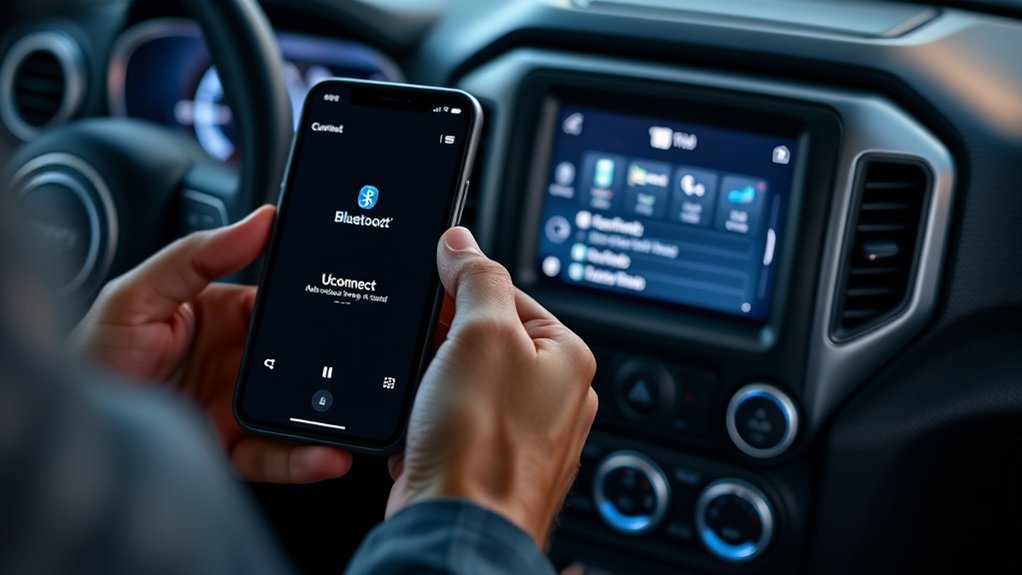
Before pairing your smartphone with Uconnect, make sure your device is ready. First, check that Bluetooth is turned on and set to discoverable or visible mode. This is important for the pairing to go smoothly.
Keep your phone close to the Uconnect system, as being nearby helps establish a reliable connection. Also, make sure your vehicle is in park or stationary to avoid interruptions during pairing.
Keep your phone near the Uconnect system and ensure the vehicle is stationary for a smooth pairing process.
Open your phone’s Settings app, go to the Bluetooth menu, and turn it on if it isn’t already. Double-check that your phone isn’t connected to other Bluetooth devices, which can cause conflicts.
Getting your smartphone prepared this way makes the Bluetooth pairing quick and hassle-free, setting the stage for a successful connection.
Enable Bluetooth and Make Your Phone Discoverable
Once your phone is ready for pairing, the next step is to turn on Bluetooth and make it discoverable. Head to your phone’s Settings menu, enable Bluetooth, and set your device to “Discoverable” or “Visible” mode.
This way, Uconnect can easily detect your phone. Keep your phone close to the vehicle during this process to ensure a strong connection. Don’t disable Bluetooth or hide your device until the pairing is complete.
Make sure your phone stays discoverable throughout. Here’s a quick overview:
| Step | Action | Result |
|---|---|---|
| 1 | Enable Bluetooth | Phone is discoverable |
| 2 | Keep device visible | Uconnect detects phone |
| 3 | Maintain proximity | Smooth pairing process |
Access Uconnect Bluetooth Settings in Your Jeep
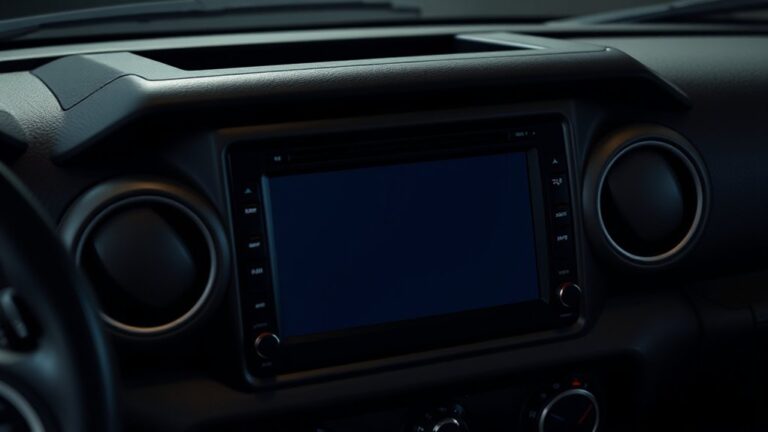
To access your Uconnect Bluetooth settings, tap the “Phone” icon on the touchscreen. From there, go to the “Settings” or “Bluetooth” menu to see your connected devices.
You can easily add new phones or manage your existing connections through these options. It’s a simple way to stay connected and keep everything organized.
Navigating Bluetooth Menu
Accessing the Bluetooth settings on your Uconnect system is simple. Just press the “Phone” icon on your touchscreen or steering wheel control to open the Bluetooth menu.
From there, go to the “Settings” option to manage your Bluetooth devices. You’ll see options like “Paired Phones” or “Bluetooth Devices,” where you can view, connect, disconnect, or delete your devices.
To add a new phone, select “Add Device” or “Pair a Phone” and follow the prompts. During pairing, confirm that the PIN code on Uconnect matches your phone’s screen.
Here’s a quick visual:
| Step | Action | Result |
|---|---|---|
| 1 | Press “Phone” | Opens Bluetooth menu |
| 2 | Select “Settings” | Access Bluetooth options |
| 3 | Choose “Paired Phones” | View or manage devices |
| 4 | Add or pair device | Connect new phone |
Managing Paired Devices
Wondering how to manage your Bluetooth devices on your Uconnect system? You can access the Bluetooth settings by selecting the “Phone” menu and then navigating to “Paired Phones” or “Bluetooth Devices,” depending on your system version.
To disconnect a device, simply choose it from the list of paired devices and select the “Disconnect” option. If you want to delete a device entirely, tap its name and select “Delete Phone” or “Remove Device” to prevent automatic reconnects.
To streamline your experience, manage multiple devices by assigning a primary or preferred device within the Bluetooth settings. Always confirm which device is active or primary before driving, ensuring seamless hands-free calling and media streaming through your Jeep’s Uconnect system.
Initiate Pairing and Confirm the Connection
When starting the pairing process, first select “Add Device” or “Pair a Phone” on the Uconnect system to make it discoverable. Then, enable Bluetooth on your phone and choose Uconnect from the list of available devices.
Make sure the 4-digit PIN on Uconnect matches the one on your phone before proceeding. Confirm that both devices display the same PIN to ensure they are connecting securely.
Accept any prompts on both devices to confirm the pairing request and establish the connection. Once done, your device will be added, and the pairing will be complete smoothly.
Match the Pairing Codes on Phone and Uconnect
Make sure the 4-digit PIN on your Uconnect screen matches the code on your phone.
Carefully compare the numbers on both devices before confirming the connection.
If they don’t match, cancel and restart the pairing process to generate a new PIN.
Verify Matching Codes
How can you be sure you’re pairing your phone correctly with the Uconnect system? The key is verifying the matching codes during the pairing process.
When a 4-digit PIN appears on both your phone and the Uconnect screen, check that both codes are identical. This step is vital for establishing a secure Bluetooth connection.
If the codes don’t match, cancel the pairing, reset both devices, and restart the process to generate new codes.
Matching codes confirm that you’re connecting to the correct device, preventing unauthorized access. Always double-check the numbers carefully before accepting the pairing request.
This guarantees a smooth Bluetooth connection and helps avoid connection errors or pairing with the wrong device. Accurate verification is essential for a successful and secure setup.
Confirm Codes on Both Devices
To ensure a secure connection, carefully compare the pairing codes on your phone and the Uconnect screen. Making sure these codes match is key for a successful pairing.
Follow these steps:
- Check the four-digit PIN on Uconnect.
- Compare it with the code on your phone.
- Make sure both codes are exactly the same before moving forward.
- If they don’t match, cancel the pairing and start over to generate new codes.
Matching the codes correctly prevents unauthorized access and keeps your vehicle’s Bluetooth system secure. Always verify the codes on both devices before accepting the connection request.
This step helps ensure a smooth setup and avoids connection errors, making your Bluetooth pairing safe and reliable.
Set Your Phone as the Default for Calls and Music
Once you’ve paired your phone with the Uconnect system, set it as the default for calls and music to enjoy smooth communication and audio.
Set your phone as the default for calls and music to ensure seamless communication with Uconnect.
To do this, go to the Bluetooth settings on Uconnect and select your device. Then, choose the option to make it the primary or default device for calls and media.
On your phone, open the Bluetooth menu and select Uconnect. Tap “Use as default” or “Connect automatically” to prioritize this connection.
Within Uconnect’s “Phone” or “Settings” menu, designate your phone as the default for calls and media playback. Also, enable auto-connect or trusted device mode on your phone’s Bluetooth settings.
Finally, make sure contacts and messages are synced and accessible. This way, voice commands and calls will work smoothly without any hassle.
Troubleshoot Common Bluetooth Pairing Problems
If you’re having trouble pairing your phone with Uconnect, start by making sure both devices have Bluetooth turned on and are in discoverable mode. Many issues happen because of outdated firmware or conflicting connections.
To troubleshoot, first delete any existing paired devices from both your phone and Uconnect to avoid conflicts.
Next, check that the PIN code matches on both devices and accept the pairing request quickly.
Keep your phone close to the vehicle, and try to avoid obstructions or interference that could disrupt the Bluetooth signal.
Finally, update your phone’s operating system and Uconnect firmware to the latest versions for better compatibility.
Following these steps usually fixes most Bluetooth pairing problems by ensuring clear communication and up-to-date software. This makes your connection more reliable and easier to use.
Frequently Asked Questions
How Do I Connect My Phone to the Uconnect in My Jeep?
To connect your phone to Uconnect, start by turning on Bluetooth on your phone and making it detectable.
Then, press the “Phone” button on your Jeep’s Uconnect system, select “Add Device” or “Pair a Phone,” and pick your phone from the list.
Confirm the 4-digit PIN on both screens, follow any prompts, and your phone will be successfully connected for calls, music, and navigation.
Why Won’t My Uconnect Connect to My Phone?
Your Uconnect system might not connect to your phone because of outdated software, Bluetooth issues, or compatibility problems.
Make sure Bluetooth is enabled and your phone is discoverable. Delete old pairing records and keep your devices close without obstructions.
Check for software updates on both your phone and Uconnect, and confirm your phone has the necessary permissions.
If problems persist, resetting the system or consulting your manual can help.
What Is the 4 Digit Code for Uconnect?
Think of the 4-digit code as the secret handshake that opens a world of connection. For Uconnect, this PIN is a unique number displayed on your vehicle’s screen during pairing. It’s like a digital password, making sure your devices trust each other.
You simply enter this code into your phone’s Bluetooth settings. If it doesn’t match or doesn’t appear, restart the pairing process to generate a fresh, secure code.
Why Is My Phone Not Pairing With My Jeep?
Your phone might not be pairing with your Jeep because Bluetooth isn’t turned on or your phone isn’t detectable. Check for any saved devices and delete them, then try again.
Make sure the PIN matches and you approve the connection. Also, verify both your phone and Uconnect system have the latest software updates.
Keep your phone close to the vehicle without obstructions. This helps ensure a smoother pairing process.
Conclusion
Now that you’ve connected your phone to Uconnect, you’re all set to enjoy hands-free calls and seamless music streaming.
It’s a simple step that transforms your driving experience from distraction to connection.
Even with all these advantages, the real journey begins when you rely on technology to bring you closer.
Sometimes, the simplest connections make the biggest difference.
Drive safe and stay connected, no matter where the road takes you with your connected Jeep Uconnect system.